

Download GlassWorks – Java Installer Builder for Windows, Mac, Linux
Overview
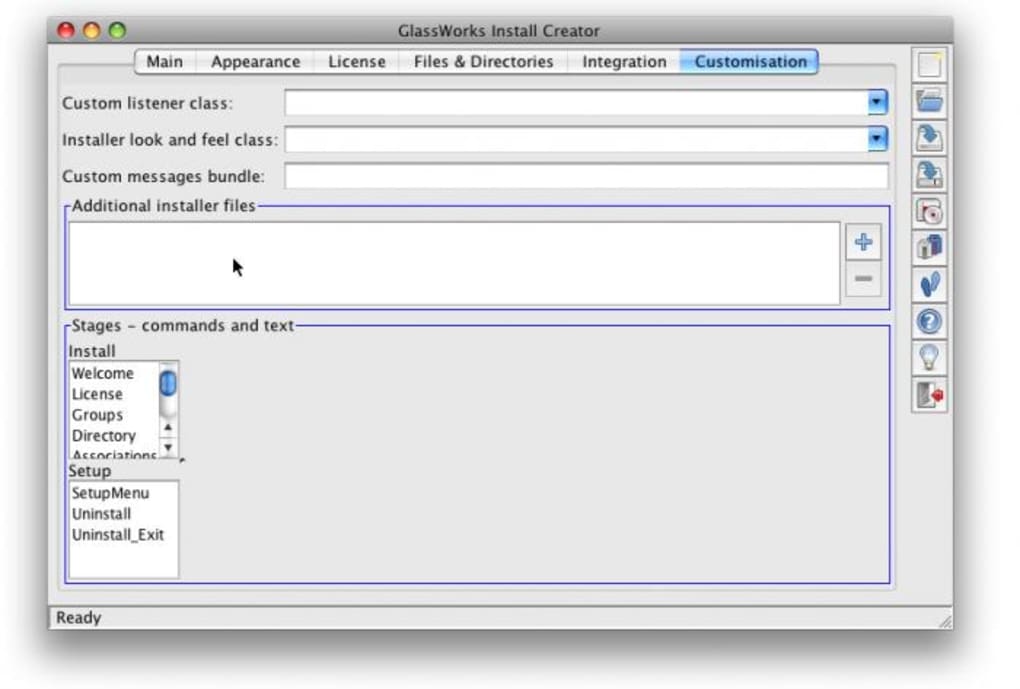
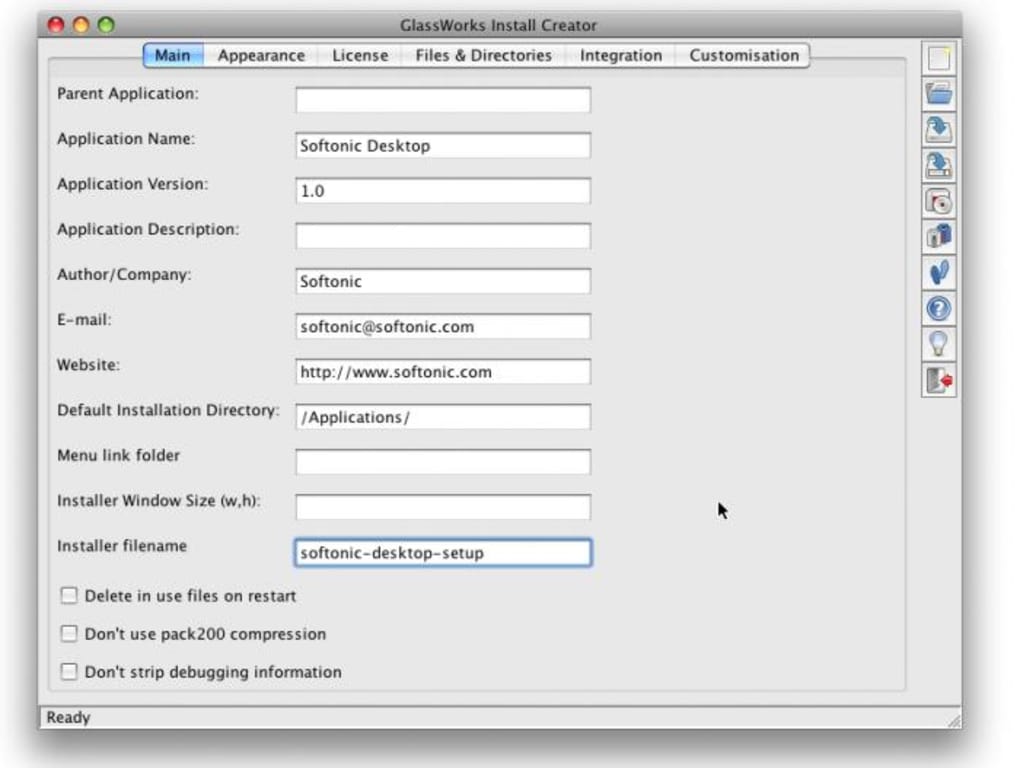
GlassWorks is a purpose‑built Java‑based installer creator that lets developers package cross‑platform applications into a single, self‑contained installer. Whether your audience runs Windows, macOS, or a popular Linux distribution, GlassWorks delivers a consistent installation experience without the need to maintain separate native installers for each operating system. The tool’s interface is organized into clearly labeled tabs, each focusing on a different stage of the installer‑building process – from defining file associations to customizing splash screens and logging messages.
Even users with limited programming background can navigate the wizard‑like workflow, select predefined installation directories, and publish installers via direct web links or downloadable archives. While Java installers can be slower to launch compared with native zip packages, GlassWorks compensates with a high degree of configurability: you can enforce installation paths, bind file extensions, display custom dialogs, and embed ad‑supported messages for monetisation. The software is positioned as a secure, free‑to‑try solution that bridges the gap between developer convenience and end‑user reliability, making it an attractive choice for indie developers, small businesses, and open‑source projects that need a universal installer without the overhead of multiple platform‑specific tools.
Key Features of GlassWorks
- Cross‑platform Java installer generation – single .jar works on Windows, macOS, and Linux.
- Graphical interface with tabbed workflow: Project Settings, File Associations, Installer UI, and Publishing.
- Customizable installation directory options – enforce predefined locations or let users choose.
- File‑type association support – bind your application to specific extensions during install.
- Embedded logging and messaging – display progress, warnings, or ad‑supported messages.
- Web‑link publishing – generate a direct download URL for instant distribution.
- Self‑contained package creation – bundle all dependencies into one executable installer.
- Localization support – provide translated UI strings for international users.
- Post‑install script execution – run optional batch or shell scripts after successful install.
- Free trial with optional paid upgrade for advanced features and priority support.
Step‑by‑Step Installation & Usage Guide
Getting started with GlassWorks is straightforward. First, download the latest version from the official website – the file is a small .zip archive containing the Java runtime and the GlassWorks launcher. After extracting the archive, double‑click GlassWorks.jar (or run java -jar GlassWorks.jar from a terminal) to launch the application. The initial screen asks you to create a new project or open an existing one; select “New Project” and give your installer a descriptive name.
In the Project Settings tab, specify the main executable of your application, the minimum Java version required, and the target operating systems. Next, move to the File Associations tab where you can add file extensions (e.g., .myapp) and define the default action that should launch your program when a user double‑clicks an associated file.
The Installer UI tab lets you customize the look and feel of the installation wizard. You can upload a logo, choose a colour scheme, and edit the welcome and finish messages. Advanced users can enable the “Log Messages” option to display real‑time progress information or embed promotional ads that appear during the install process.
Once all tabs are configured, click the Build Installer button. GlassWorks compiles the settings into a single .jar file that can be distributed as a download link or packaged into a self‑extracting archive for offline distribution. To test the installer, run it on a clean machine or virtual environment; the wizard will guide you through the installation steps you defined, create the target directories, register file associations, and finally launch the post‑install script if you added one.
Updating an existing installer is as simple as reopening the project file, adjusting the settings, and rebuilding. The tool automatically increments the version number and can generate a changelog for end‑users. For developers who need automated builds, GlassWorks provides a command‑line interface that accepts a JSON configuration file, allowing integration with CI/CD pipelines for continuous delivery of updated installers.
Compatibility, Pros and Cons
GlassWorks itself runs on any platform that supports Java 8 or higher, which includes Windows 7/8/10/11, macOS 10.12 and later, and most modern Linux distributions (Ubuntu, Fedora, Debian, etc.). The installers it creates inherit this cross‑platform capability: a single .jar file can be executed on any of the supported operating systems without modification, provided the user has a compatible Java Runtime Environment installed.
Pros
- True cross‑platform support: One installer works everywhere, reducing maintenance overhead.
- Highly customizable UI: Brands can present a professional look with logos, colours, and custom messages.
- File‑type association: Seamlessly bind your app to specific extensions during install.
- Free to download: No upfront cost for basic features; optional paid upgrade for advanced options.
- Developer‑friendly: Command‑line mode enables automated builds and CI integration.
- Secure installation: Uses Java’s sandboxing model and digital signing to verify installer integrity.
Cons
- Java installers can have a slower startup time compared with native zip or exe packages.
- End‑users must have a compatible Java Runtime Environment installed, which may add an extra step for some.
- The free version limits certain advanced features (e.g., multi‑language packs, premium support).
- Complex UI customizations may require basic knowledge of XML or JSON configuration files.
- Large applications bundled with all dependencies can result in bigger installer file sizes.
Frequently Asked Questions & Final Thoughts
Do I need to install Java separately to run GlassWorks?
GlassWorks ships with an embedded Java runtime for Windows and macOS, so you can start the application without a separate Java installation. On Linux, you may need to install the OpenJDK package if it is not already present.
Can I create a silent installer for enterprise deployment?
Yes. GlassWorks includes a command‑line flag (--silent) that suppresses all UI dialogs, allowing the installer to run silently in the background. You can also pre‑define installation paths and suppress file‑association prompts.
Is the installer signed to avoid security warnings?
The free version does not include automatic code signing, but you can manually sign the generated .jar using tools like jarsigner. Paid licenses provide an integrated signing option with your own certificate.
How large is a typical GlassWorks installer?
File size depends on the size of your application and bundled dependencies. A modest Java app (~10 MB) usually results in an installer of around 12–15 MB, while larger applications with native libraries can reach 50 MB or more.
Can I update an existing installation without reinstalling?
GlassWorks supports incremental updates by generating a patch installer. The patch replaces only the changed files and updates version metadata, allowing a smooth in‑place upgrade.
In summary, GlassWorks fills a niche that many developers overlook: a reliable, Java‑based installer that works everywhere. Its intuitive UI, robust feature set, and flexible command‑line interface make it suitable for solo developers and small teams alike. While the reliance on Java may introduce a slight performance trade‑off, the benefits of a single, maintainable installer outweigh the drawbacks for most cross‑platform projects. If you’re looking to distribute your application without juggling multiple native installers, give GlassWorks a try – download it today, build your first installer in minutes, and enjoy the peace of mind that comes with a consistent installation experience across Windows, macOS, and Linux.
Pros: Cross‑platform, customizable UI, file‑type association, free basic tier.
Cons: Requires Java runtime, larger installer size, limited advanced features in free version.







